
Install TiviMate · on your Android TV
Follow the steps
- 1
Visit tivimate.com on the TV
In the TV browser open tivimate.com and scroll past the first screen to the download controls. Choose Google Play to jump to the listing.
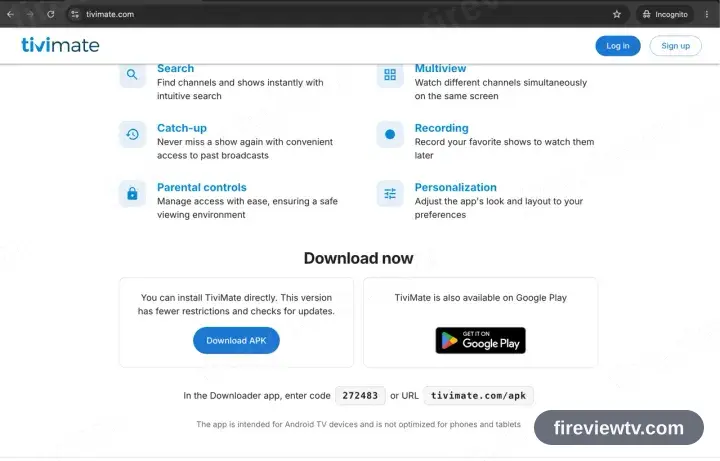
No Play Store on the box? Some Android TV hardware ships without it. The same page carries an Install APK link — take that instead and open the downloaded file.
- 2
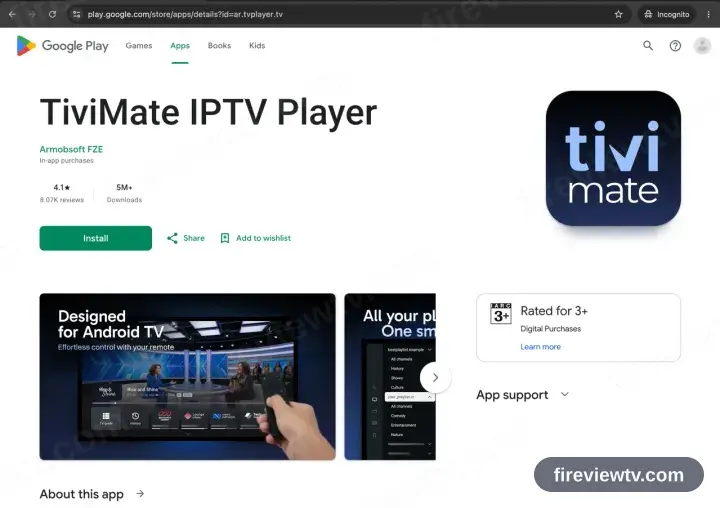
Select Install
Google Play opens on the TiviMate entry. Choose Install and wait.
- 3
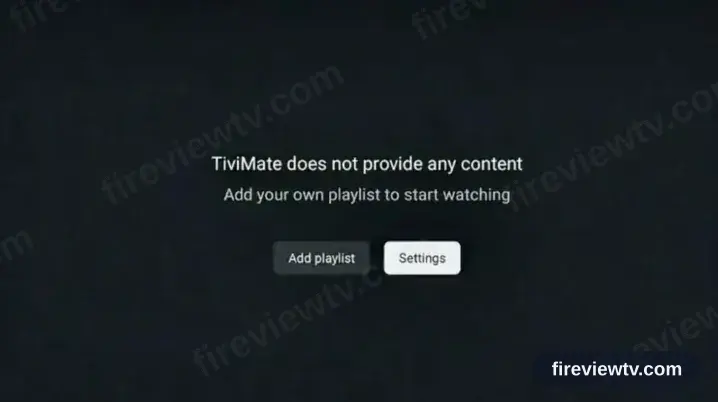
Launch TiviMate and take Add playlist
Start the app and choose Add playlist on the opening screen.
- 4
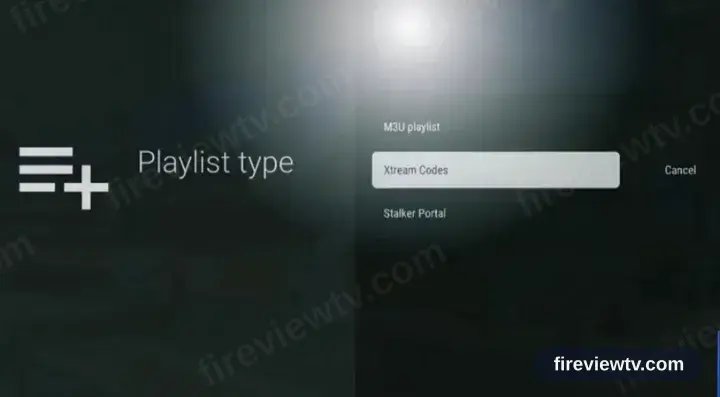
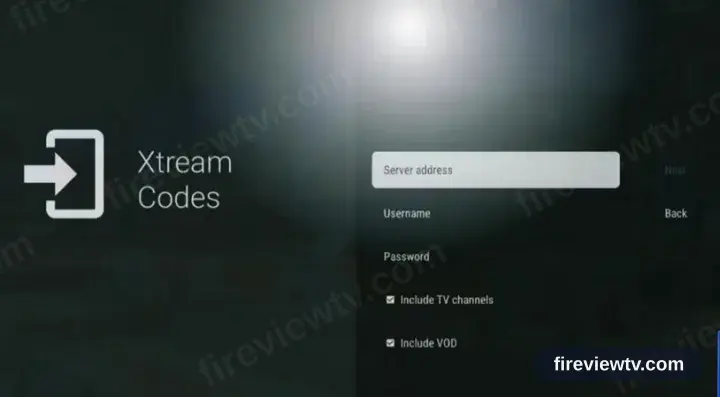
Choose the Xtream Codes type
Set the playlist type to Xtream Codes rather than M3U.
- 5
Fill in the three fields
Copy the server URL, username and password from your activation email. All three are case sensitive.
- 6
Playback time
TiviMate loads the channel list, films and series. Select a channel to begin playback.
Installing TiviMate on Android TV: what is different
Android TV and Google TV boxes install TiviMate from the Google Play Store on the device — not from your phone's Play Store.
If TiviMate is not on Play for your box, Android TV does allow sideloading: install a downloader app, then enable install-from-unknown-sources for it in Settings.
Most Android TV remotes have no pointer. TiviMate is far easier to drive if it supports D-pad navigation, which is why it is recommended here.
Your Fireview TV login details (username, password & server URL, M3U link or MAG portal URL) are in the activation email we send right after checkout. Lost it? Contact support and we'll resend it.
Get your subscription
Get Started