
Install IPTV Smarters PRO · on your MacBook / iMac
Follow the steps
- 1
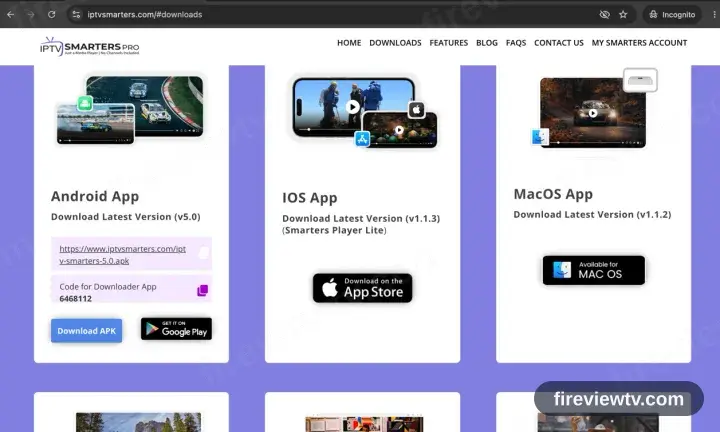
Take the Mac build from iptvsmarters.com
Open iptvsmarters.com, scroll to the downloads and select the Mac version. It is not carried in the Mac App Store.
- 2
Install, then open the app
Open the downloaded file, drag IPTV Smarters Pro into Applications and launch it.
macOS flags anything downloaded outside the App Store. Open the app once from Finder with a right-click and choose Open; the warning does not recur.
- 3
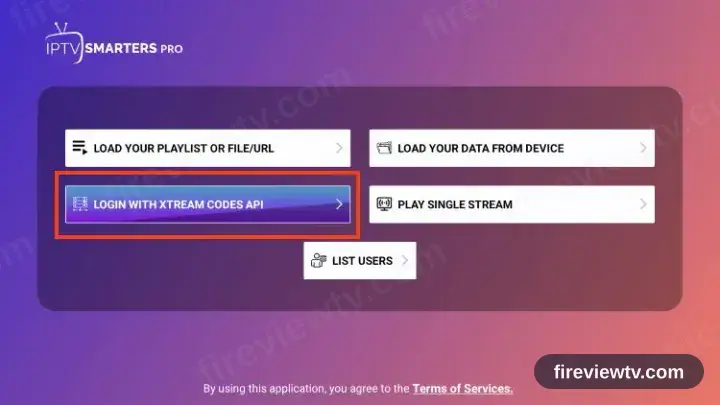
Select “Login with Xtream Codes API”
The welcome screen offers two methods. Take the Xtream Codes API option; ignore the M3U one.
- 4
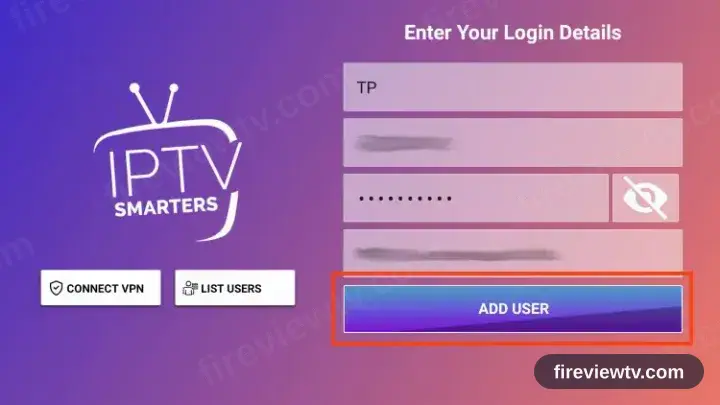
Fill in the three fields
Copy the server URL, username and password from your activation email. All three are case sensitive.
- 5
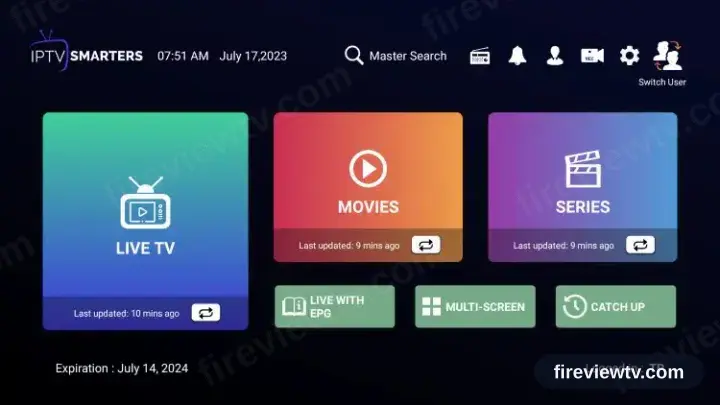
Playback time
The channel list, films and series load in. Select a channel to begin playback.
Installing IPTV Smarters PRO on MacBook / iMac: what is different
On a Mac, IPTV Smarters PRO runs as a desktop application — download it from the Mac App Store or the developer's site, then drag it to Applications.
macOS blocks a first launch from an unidentified developer. Right-click the app and choose Open to approve it once, rather than changing your security settings.
Apple Silicon and Intel Macs sometimes need different builds. Check which one you have under › About This Mac before downloading IPTV Smarters PRO.
Your Fireview TV login details (username, password & server URL, M3U link or MAG portal URL) are in the activation email we send right after checkout. Lost it? Contact support and we'll resend it.
Get your subscription
Get Started