
Install HotPlayer · on your iPhone / iPad
Follow the steps
- 1
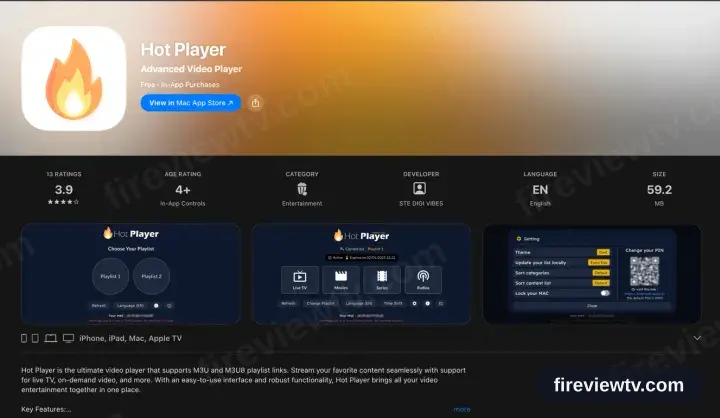
Locate Hot Player in the App Store
On the iPhone or iPad open the App Store, tap Search and enter Hot Player. The download costs nothing and includes a trial; the playlist licence is bought in-app and covers your Apple TV and Mac as well.
- 2
Install, then open Hot Player
Tap Get, wait for it to complete, then launch the app.
- 3
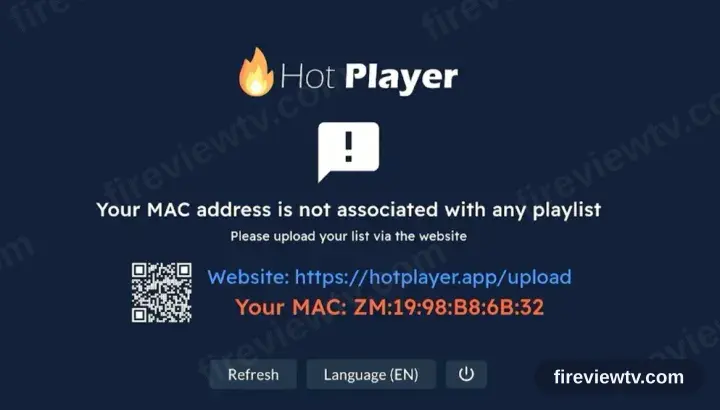
HotPlayer requests a playlist
On first launch HotPlayer reports no playlist and displays a device ID alongside hotplayer.app/upload. Leave the screen where it is.
- 4
Register the playlist at hotplayer.app/upload
From a browser, open hotplayer.app/upload. Set the source to Xtream Codes, supply the server URL, username and password from your activation email, and save.
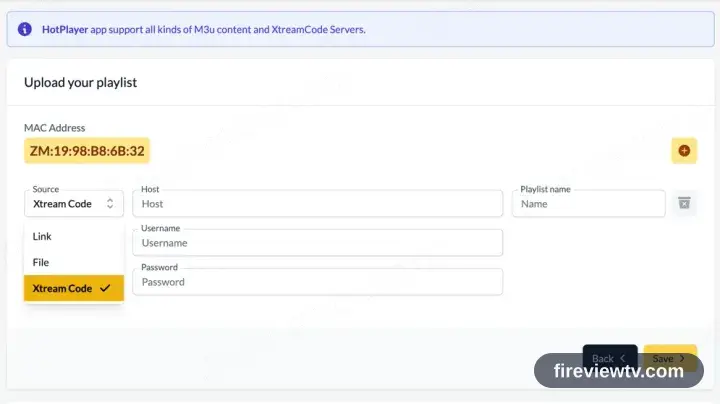
Safari on the same iPhone or iPad handles this fine — the upload page is a website, not part of the app.
- 5
Return to the app and tap Refresh
Back in Hot Player, tap Refresh. The saved playlist is picked up straight away.
- 6
Playback time
The channel list, films and series load in. Select a channel to begin playback.
Installing HotPlayer on iPhone / iPad: what is different
On iPhone and iPad, HotPlayer installs from the iOS App Store — the same Apple ID you already use, no extra account.
iOS players are often a one-off paid download rather than a subscription. That charge is Apple's, separate from your iPhone / iPad playback.
Turn off Low Power Mode before a long match: iOS throttles background networking, which shows up as buffering mid-stream.
Your Fireview TV login details (username, password & server URL, M3U link or MAG portal URL) are in the activation email we send right after checkout. Lost it? Contact support and we'll resend it.
Get your subscription
Get Started